Turn tmux into an IDE with a single click,
Plus eleven handy little add-ons
Every time I start a project, I manually split the window three or four times: one for the file tree, one for the editor, one for git, and one for the AI. Getting tired of constantly splitting panes, over the past six months I've extracted the custom configurations piled up in my tmux setup one by one into independent plugins, making a total of twelve. This post follows the pain points rather than listing every single one. Whichever scenario hits home for you, just read that section.
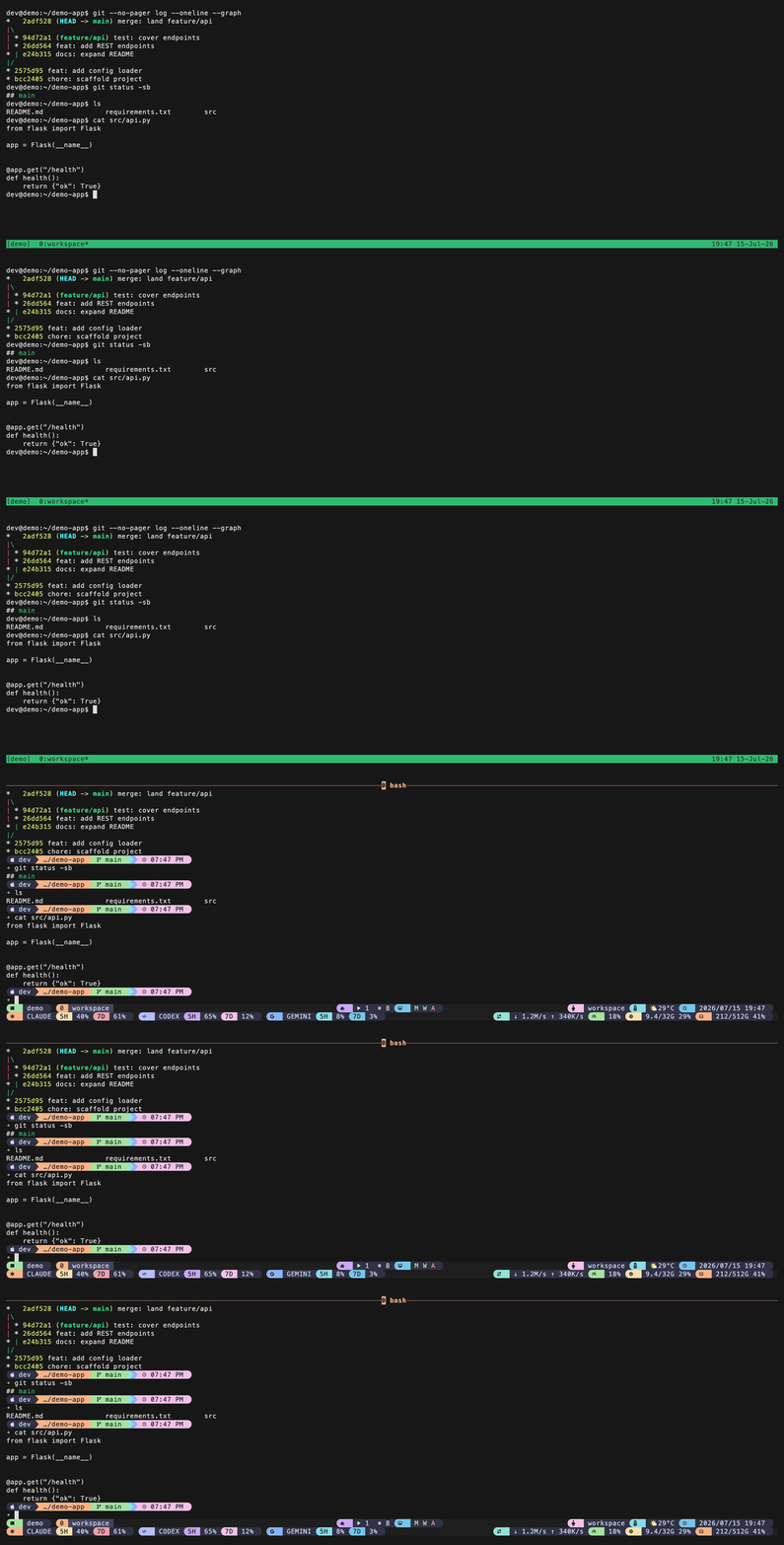
You don't have to install everything. Just use TPM; it looks like this:
Replace @plugin: the list that follows refers to other cases—they all live in github.com/operonlab below; the repository name is the plugin name. (That page will also list tmux-webui — that’s a service that brings the pane into the browser—not a TPM plugin—so we won’t cover it here.)
When you start a project, it's those four panes: tmux-workdesk
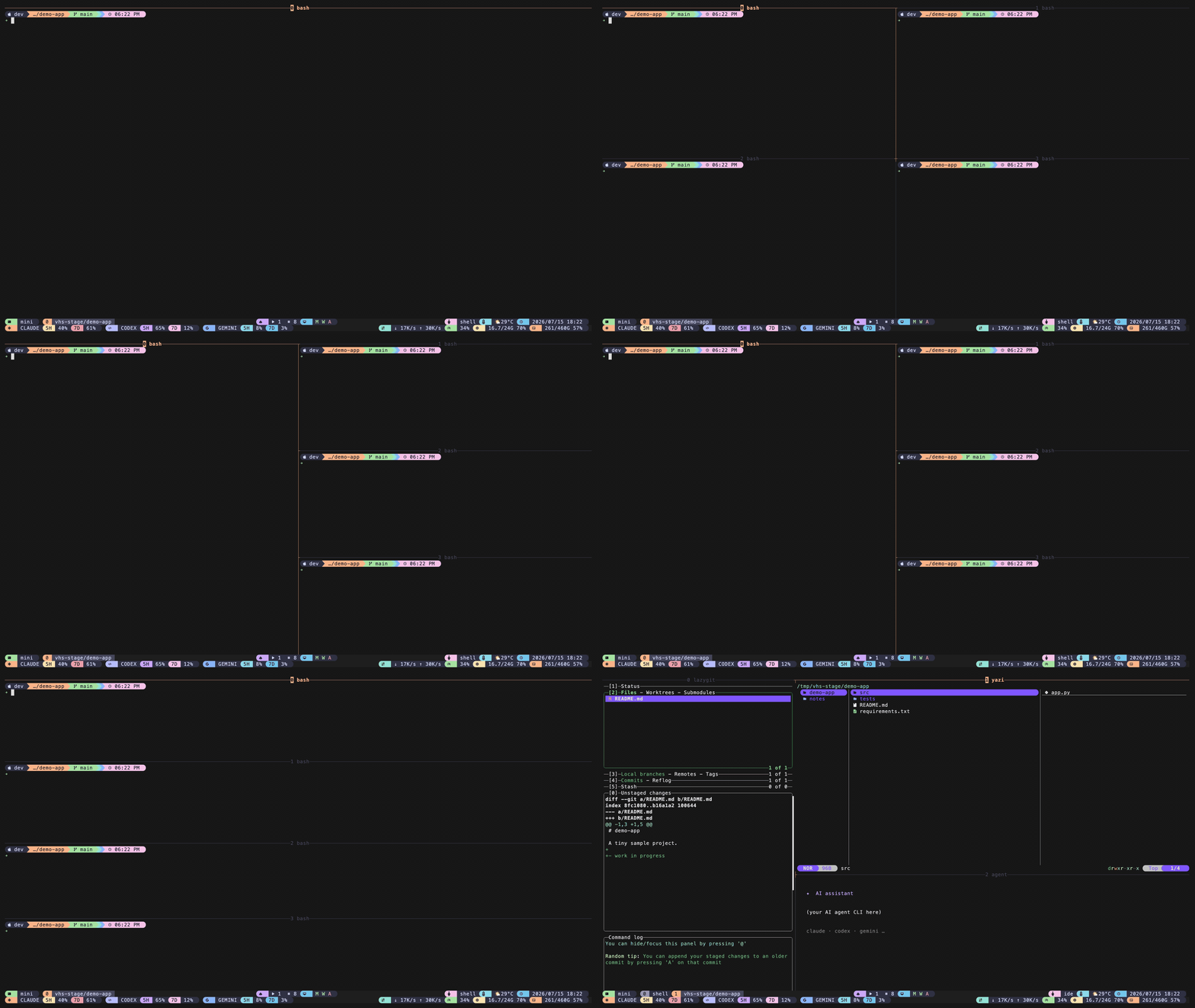
prefix + i, and it formats as IDE layout in one secondWith the cursor in any project directory, press prefix + i, the screen instantly arranges into an IDE layout: yazi file tree on the left, typing in the middle, lazygit at the bottom, and claude on the right. Pressing it again jumps back to the same window without opening a second one. What runs in each pane and how wide it is can all be customized: @workdesk-main-cmd 'nvim' — this takes care of it in one line; if a cell is set to an empty string, it skips it.
prefix + g — this is another layout option that arranges the current window into a 2×2 grid. There are also several other layouts—such as vertical columns and horizontal rows—for which you can assign custom keyboard shortcuts. These layouts only add cells; they do not remove any. When you move cells around, the original cells will simply be rearranged in place.
Default prefix + i keys override the information displayed in tmux's built-in window; if this bothers you, use @workdesk-ide-bind to replace it.
Window Stuck at 80×24: tmux-autosize
tmux-autosize resizes stuck windows to the client's actual width and height when connecting, resizing, switching windows, or opening new windows. It hides the status bar and takes up no space—it does nothing but this one thing.
But there are always a few windows that consist entirely of 80x24—it was also split into three or four panes, with only about twenty columns left in each. Nothing could be read, and no matter what I tried, they wouldn't get any bigger. They were probably opened in the background by a script or an agent; no client had ever looked at them, and they were born at the default tmux size.
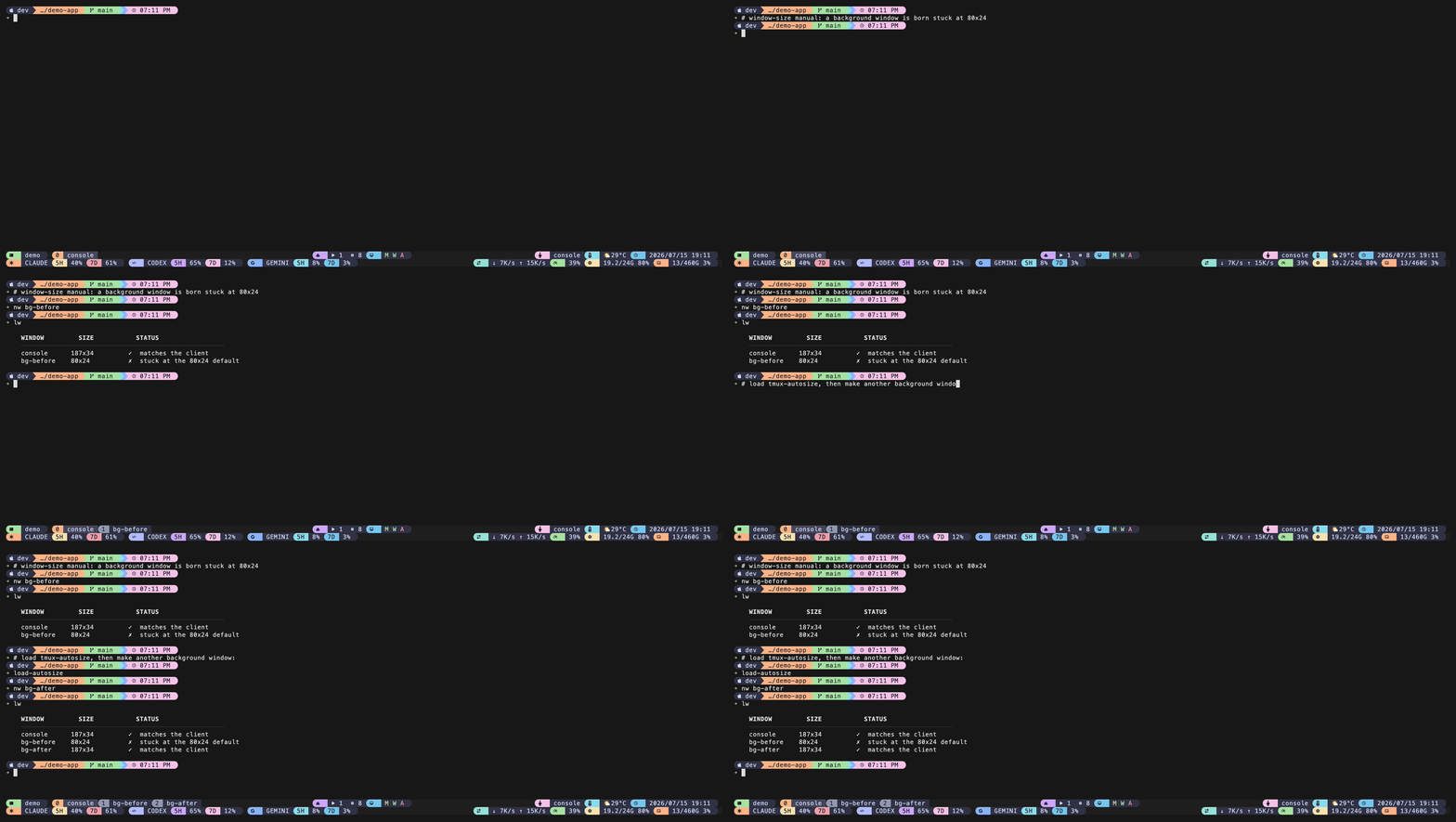
I run tmux on a 27-inch 2K monitor with the Dock on the left; each window is 356 columns wide, and when split into four panes, each pane still has 88 columns—that’s what it looks like under normal circumstances.
Let's be honest about the positioning: if you use tmux's default window-size latest, it's just a safety net to cover the edges—like the background window and the "attach" being called too early; change it to window-size manual, and only then does it become the primary window. Also, it delays resizing while you’re scrolling through history—resizing forces tmux to re-layout the entire scrollback, which can be computationally expensive when the history is long (There are similar freeze records upstream.).
Mac mini Freezes in the Middle of the Night, AI Loses All Its Memory: tmux-agent-resume
tmux-resurrect can save your layouts, but not your conversations—and that's the exact gap tmux-agent-resume fills: before saving, it records which AI is running in each pane and how to reconnect to that specific session, then types out the reconnection command upon restoration, letting your AI resume from the breakpoint rather than starting from scratch. It currently recognizes eight CLIs (Claude Code, Codex, Antigravity, Copilot, OpenCode, Kimi, Hermes, and Qwen), as each hides its conversation ID in a different place.
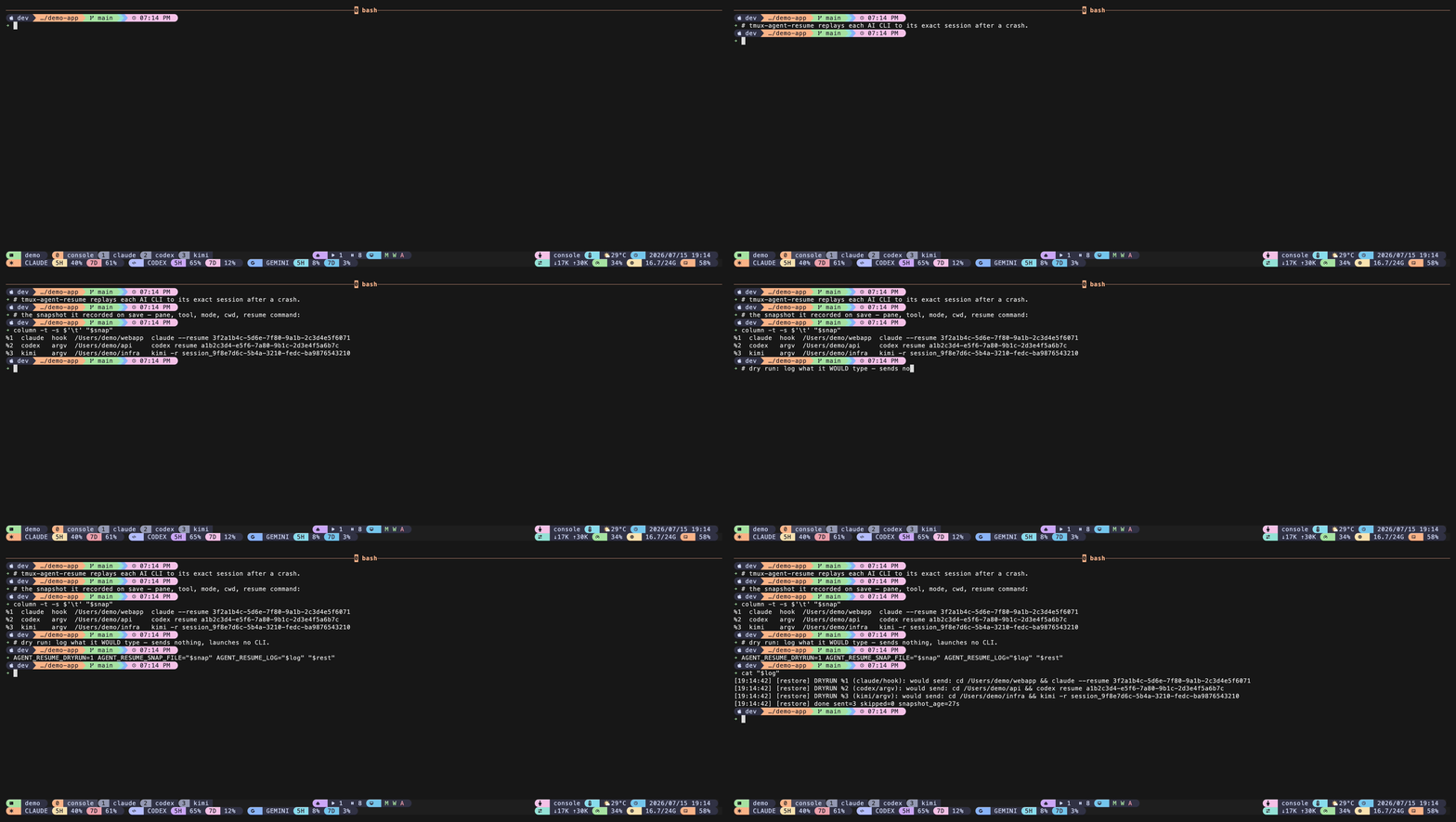
I’m adding this section because of a really chaotic night: the Mac mini in my study—which is usually left on—froze in the middle of the night, and the background daemon forced a restart of the terminal as designed. The layout relies on tmux-resurrect, and it was restored, but all the AI assistants inside had lost their memory and forgotten where we’d left off in the conversation—the grid was empty when it came back, or the CLI restarted as a completely blank session.
To be honest: tmux-agent-resume actually types commands into your pane and hits Enter. Therefore, every command goes through a whitelist first, and any that don't match the required shape are summarily dropped, and it only acts on panes sitting at an empty prompt; if you want to preview what it's going to type, you can open @agent-resume-dry-run 1. The trade-off is an interface tied to eight third-party tools—if they change, I have to change it too; currently, it only supports macOS.
As for these remaining few, let's quickly go over them based on the context.
The first three—workdesk, autosize, and agent-resume—are the ones I felt most strongly about. The remaining nine each solve a specific annoyance: the right-click menu, the floating terminal, nested tmux key collisions, and the status bar numbers.
I'm used to using a mouse and can't remember the keyboard shortcuts
tmux-context-menu adds split, zoom, close, and rename options to the right-click menu; the menu pops up where you click (if you don't want to use the mouse, just press Alt+q). Following in the footsteps of my seniors jaclu/tmux-menus, taking a different approach: that one is a keyboard-navigated, layered menu tree, while this one is intentionally narrow, designed around the principle that “wherever you click, that’s where the menu appears.”
I want a handy terminal for quick use
tmux-floatpane: press prefix + t and a small terminal pops up from the center of the screen; tap it again to close it, and whatever’s inside will still be there next time. It is omerxx/tmux-floax enhancement branch, originally designed and implemented by Omer Hamerman; I just ran into a few minor bugs while using it and wanted to clean them up. Since it is modified from a GPL-3.0 work, this branch is also under GPL-3.0.
I often SSH into a remote machine and then start tmux on that end.
Two layers of tmux can cause conflicts Ctrl-b. tmux-passthrough provides a "step aside" key (F12 by default); pressing it once closes the outer layer, passes all key presses to the inner layer, and turns the status bar a warm peach color to remind you which layer you're on. It's better than its predecessor tmux-suspend — an extra safety measure: F12 only works in this cell when you're connected remotely; if you press it by mistake on the local machine, nothing happens.
I want to display system numbers in the status bar
tmux-sysmon provides you with four metrics: CPU, memory, disk, and network speed, via #{...} placeholders—it outputs plain text only; pair it with your own theme (on macOS, the disk path must point to /System/Volumes/Data — that’s the only way to get it right.) If you want to add an entire row of environmental information, tmux-pillbar lets you add another row below the first one, divided into three columns: left, center, and right. It’s just a framework, not a theme—you provide the colors and content yourself.
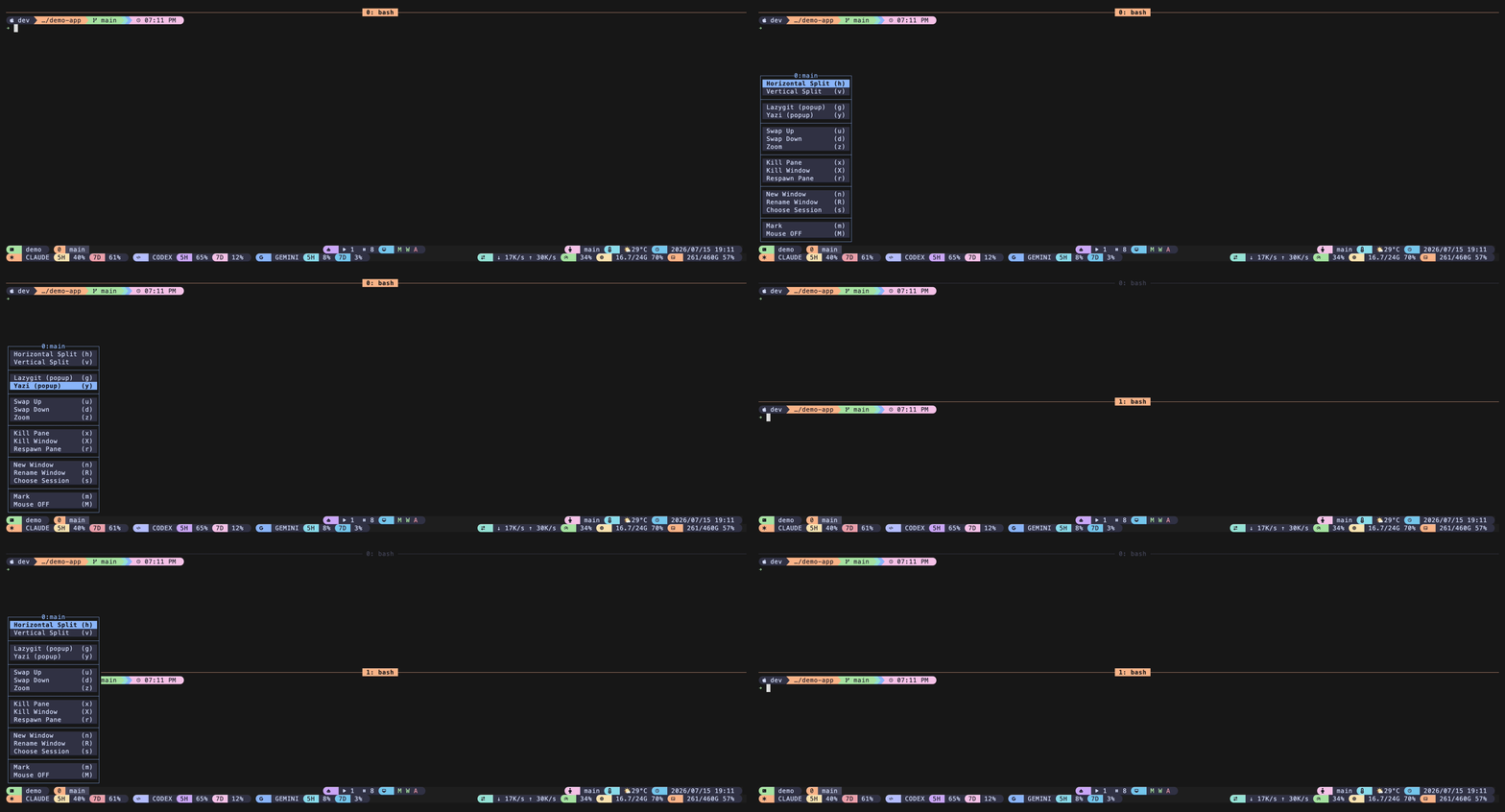
First, two things for anyone running a bunch of AI CLIs in their terminal at the same time; skip this if you aren't. tmux-agent-status displays the number of AIs in the status bar that are busy, stuck waiting for your approval, or idle; if none are running, the capsule disappears itself. tmux-llm-usage renders your connected usage and quotas—it doesn't fetch the numbers for you, providing only a JSON convention and a lag-free capsule.
These two capsules, along with the agent-resume mentioned earlier, are the three things I had the least reference material for when writing them. For the items above, I could point out whose shoulders I was standing on, but for these three, since I couldn't find anything ready-made at the time, I just did it myself. I only found out later that others were working in the same space—tmuxwatch makes a pure-observation TUI, and harness-terminal is a native terminal that detects when "the agent is waiting for you." Their angles are different from mine, but they are solving the same set of problems. Just because I didn't find it doesn't mean it doesn't exist; it just means I didn't come across it at the time.
The cost is also the highest among these three: I have to keep up with the interfaces of eight third-party AI tools, and whenever they change, I have to update accordingly.
One looks back at history, the other at the present: tmux-agent-history / tmux-agent-dock
The agent-status and llm-usage on the status bar only say "how many are busy, how many are stuck." What is being added here is the next step—which one should I go into. Instead of putting them on the status bar, press a single key to open a full-height list: flip through one, keep an eye on the current one.
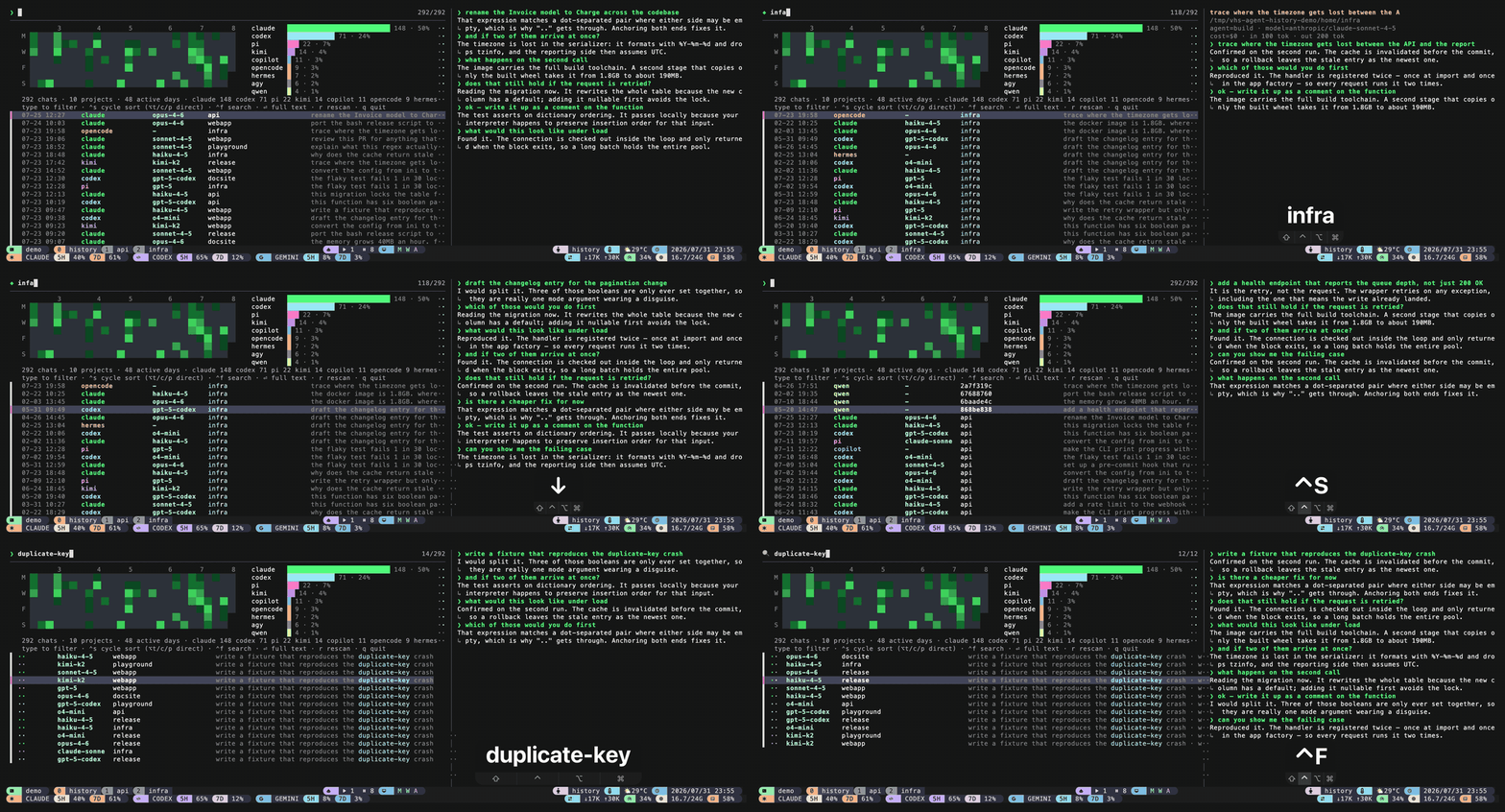
Every CLI stores its conversations on the hard drive, with locations and formats all over the place—Claude Code writes to a certain JSONL, Codex uses another set, and Gemini crams them into a different folder. tmux-agent-history sweeps nine of them (Claude Code, Codex, Gemini, Copilot, OpenCode, Kimi, Hermes, agy, Qwen) into a single list, and whichever row you select previews that conversation right beside it. When you want to dig up last week's unfinished discussion, you don't have to open and search through CLIs one by one. It only reads files and never touches the agent you're currently running.
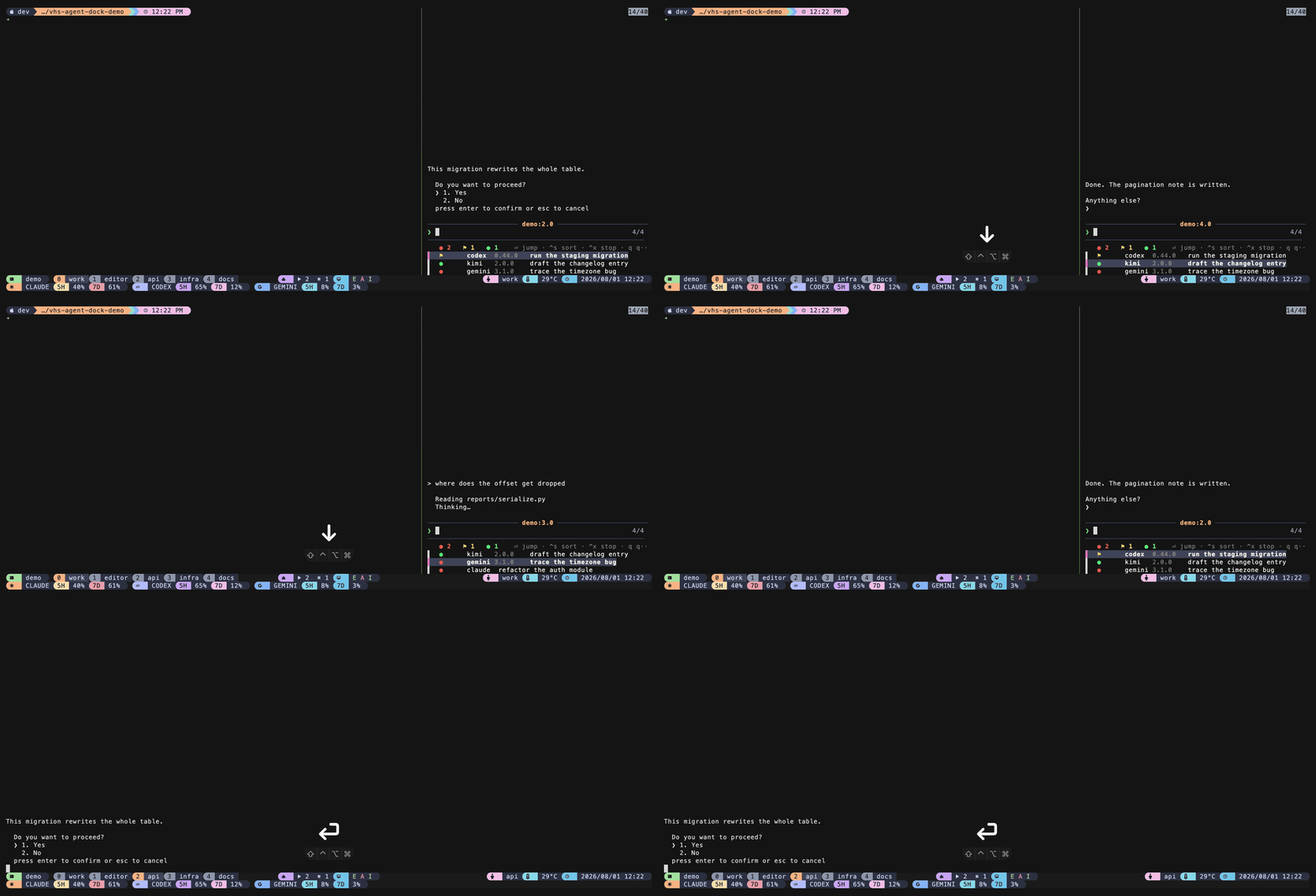
⏎ skip aheadtmux-agent-dock carves out a sidebar on the right edge of the current window, listing in real-time every agent currently running on this server, with the ones waiting for your approval placed at the top. Wherever you move your cursor, the upper half switches to that agent's view; ⏎ skip to, ⌃x stop it. The state checking shares the same system as the `agent-status` capsule; it doesn't run a separate background process or store any data.
These two come with the same baggage as the previous agent-status, llm-usage, and agent-resume: you have to recognize how each CLI stores its history and what its interface looks like, so integrating a new one means adding another set of rules, and currently it's only been verified on macOS.
Comparison of the Features of the Twelve Plugins
| Plugin | In a nutshell | Minimize tmux | Authorization |
|---|---|---|---|
| tmux-workdesk | Arrange the current project in an IDE layout with a single click; also includes geometric layouts such as grid and vertical columns. | 2.4 | MIT |
| tmux-autosize | Resize windows with backgrounds stuck at dimensions like 80×24 to the correct size | 3.0 | MIT |
| tmux-context-menu | In tmux, right-click to bring up the action menu—it's right next to the mouse. | 3.3a | MIT |
| tmux-floatpane | On-demand floating scratch terminals with data retention | 3.3 | GPL-3.0 |
| tmux-passthrough | Hand over control to the remote tmux instance with a single click, and it will no longer interfere with keystrokes. | 2.4 | MIT |
| tmux-sysmon | The status bar displays four readings: CPU, memory, disk, and network speed | 1.8 | MIT |
| tmux-pillbar | Open an extra row of the status bar, and fit whatever you need into the three slots on the left, center, and right. | 2.9 | MIT |
| tmux-agent-status | The status bar lists how many AIs are busy, stuck, or idle. | 2.1 | MIT |
| tmux-llm-usage | The status bar displays your AI usage and quota. | 1.8 | MIT |
| tmux-agent-resume | After restarting, resume each AI conversation from where it left off (requires tmux-resurrect) | 1.9 | MIT |
| tmux-agent-history | A list that scans through the history of conversations stored on your hard drive across various AI CLIs—just select one to preview it. | 1.9 | MIT |
| tmux-agent-dock | The sidebar on the right displays a real-time list of running agents; press ⏎ to skip to the next one, or ⌃x to terminate it. | 1.9 | MIT |
Can't be bothered to choose: Whether you want to open a new project every day or view multiple panels at once, workdesk is the solution (prefix + i sort IDE, prefix + g grid layout); if the dimensions are consistently off, just use "autosize"; after running a bunch of AI simulations, those are the final five items. If you only want to install one and don’t want to change your habits, "autosize" is the easiest option.
Post your .tmux.conf file so we can see which ones work.
There are twelve minimum versions to check in the table above, and going through them one by one is a real hassle. Paste the line that tmux -V prints out, and your ~/.tmux.conf, here—we’ll run a version gate on the same table and, while we’re at it, scan the five keys listed in this article (prefix + i, prefix + g, prefix + t, Alt+q, F12) whether it conflicts with your existing keybindings, and finally generate a TPM block that can be pasted directly into your conf. Everything runs entirely in your browser—nothing you paste is sent anywhere. If your conf contains tokens, passwords, or sensitive paths, please remove them before pasting.
All source references are included in this article: The minimum tmux versions and licenses for the twelve items were copied verbatim from the “Comparison of Twelve Plugin Features” table, and the five keys to be scanned are listed in point 2 of the “Take This Segment” prompt section, which I compiled myself. @workdesk-ide-bind, place the TPM block above the "run" line, save the file, and then press prefix + I, are all direct quotes from this article. Due to platform limitations, this article only mentions three things: agent-resume and agent-dock are written as "macOS only," agent-history is written as "tested on macOS only," and how the remaining nine things behave on Linux/WSL is not mentioned in this article. It reads the string you pasted, not your computer.—I've never run before tmux -V, didn't check if TPM is installed, won't follow source file into another file, so "not scanned" might just mean it collided in a different file; keybindings could also come from another plugin you already have installed—those lines are not in the conf and cannot be seen here. When a collision occurs, this text can only provide the keybinding option name for workdesk; the modification methods for floatpane, passthrough, and context-menu need to be checked in their respective repos. The prompt mentioned above in "take this snippet away" has the agent actually run tmux -V on your machine and actually read the `conf` file, which is more accurate than this; the only real use of this tool is to get an immediate answer when you don't have an agent on hand, and it can pinpoint the exact line where the conflict occurs.
Copy this section
For now, I'll just make do with the settings—it's only worth creating a plugin for something once I've had to deal with the same issue three times.—Not a single one of these twelve was planned as a plugin before I started. Most were extracted because a few lines in the configuration file became too much of an eyesore; a few were forced out by actual emergencies, like that midnight reboot. Conversely, if something was only annoying once, writing it into the config file is enough.
If you can't tell which one is useful, copy and paste the text below into your AI and let it assess it based on your actual situation.
Further Reading
Of the six links, three are shoulders to stand on (tmux-floax, tmux-suspend, tmux-menus), and the rest are tmux-resurrect along with the issues I encountered and similar predecessors.
| Resources | Why It Matters |
|---|---|
| omerxx/tmux-floax | The upstream repository for tmux-floatpane. The original design for the floating scratch terminal came from here; my branch simply fixes a few bugs I encountered while using it. |
| MunifTanjim/tmux-suspend | It opened up the possibility of “passing the entire prefix to another layer,” which made me realize that what passthrough needs to address is the safeguard that “only takes effect in remote cells.” |
| jaclu/tmux-menus | Let me think this through: the context menu should be narrow—it follows the keyboard menu tree, while I use the right-click-in-place method. These two approaches cater to different habits. |
| tmux-resurrect | A ready-made solution to save the layout. Precisely because it only saves the layout and not the conversation, it necessitated the "agent-resume" layer—which is directly linked to its save/restore functionality. |
| tmux/tmux#4814 | A freeze in tmux's upstream code where "resizing triggers a full re-scroll and re-layout." The "resize after scrolling" behavior in autosize is a conservative workaround for this type of cost. |
| tmux-plugins/tmux-cpu | The technique of “rewriting the token in the status” is used by both agent-status and sysmon; sysmon also openly acknowledges that it is a predecessor in the same category. |